


How to install your eSIM
Follow these steps to get connected.

Select Your eSIM Data Plan for Your Smartphone

Scan the QR code or press and hold, then install the eSIM
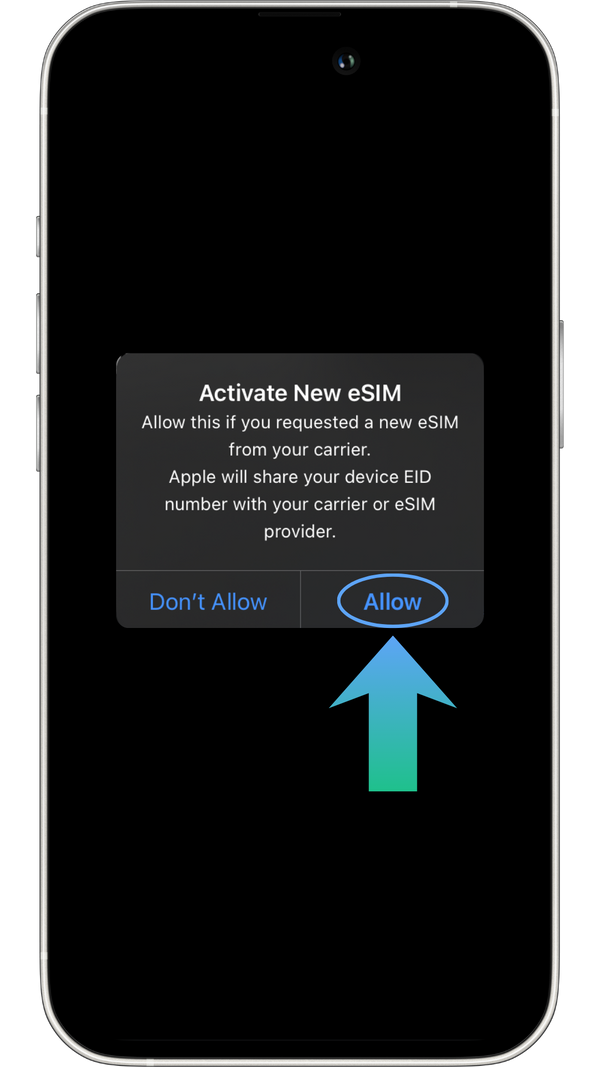
Activate data roaming when you arrive at your destination
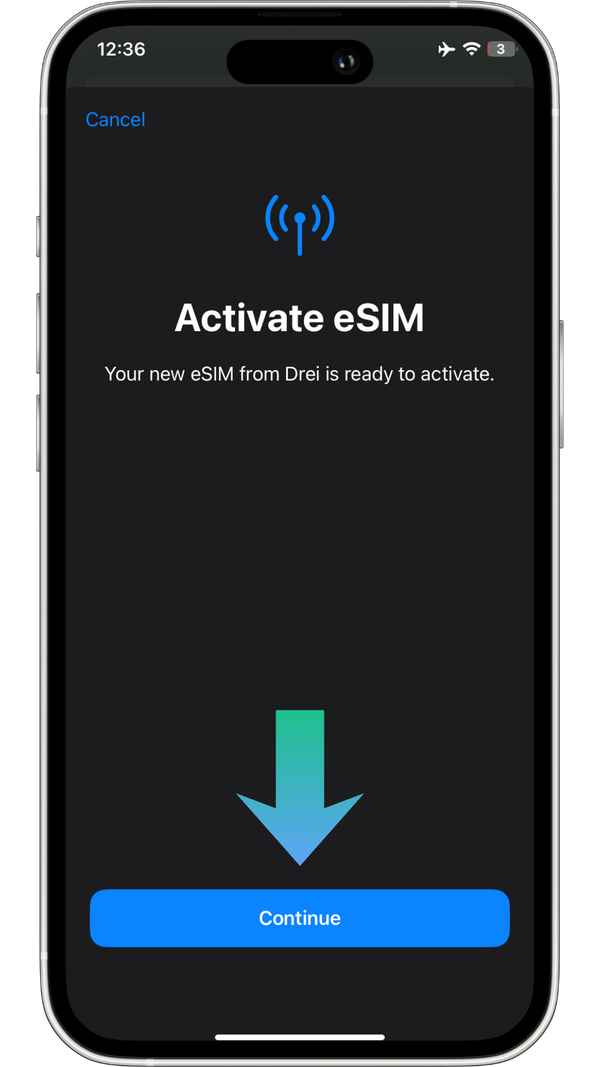
Choose Wadi eSim Cellular
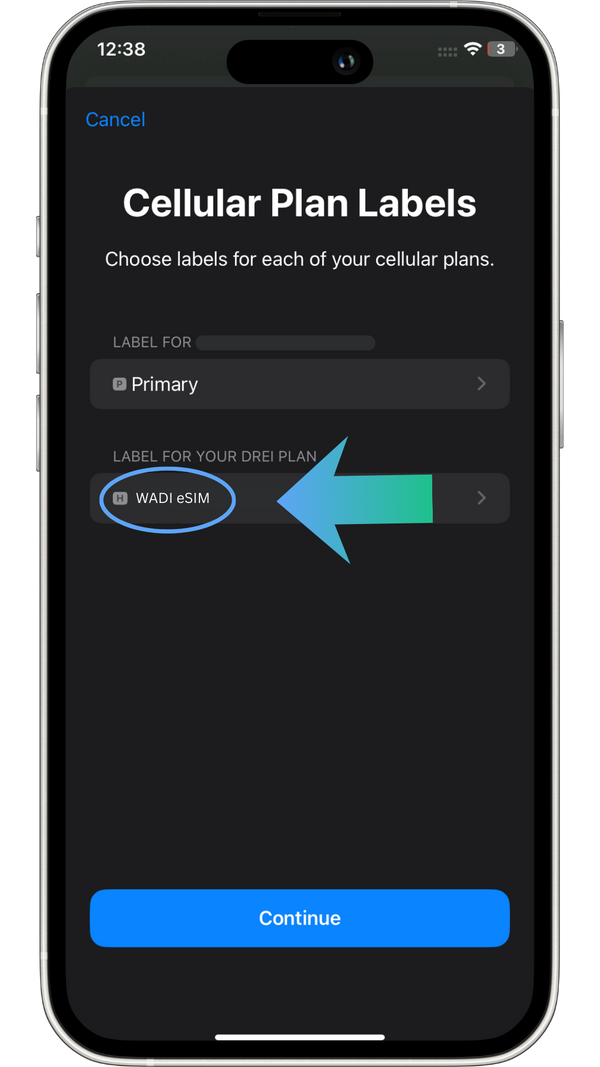
Enjoy seamless connectivity throughout your journey

Make sure these settings are on
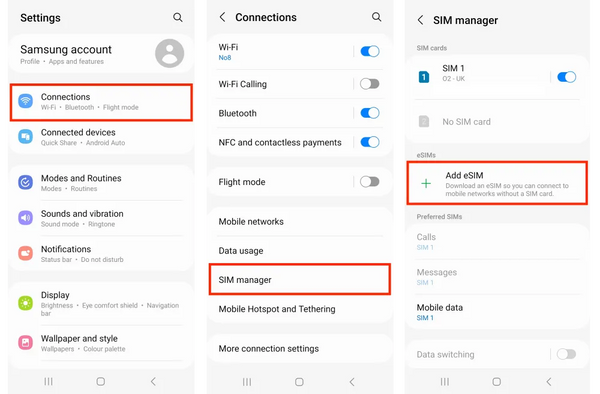
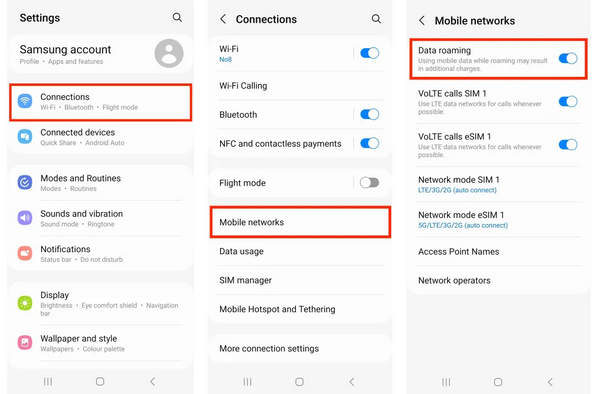
Open Settings & Connections
Navigate to the Settings app on your Android deviceScroll down and tap on "Connections"Select "SIM card manager" from the list
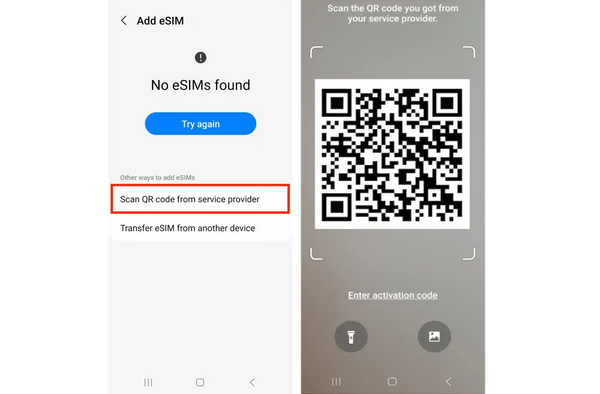
Add eSIM
In "SIM card manager", tap on "Add mobile plan"Select "Scan carrier QR code"Scan the Hala eSim QR code from your email
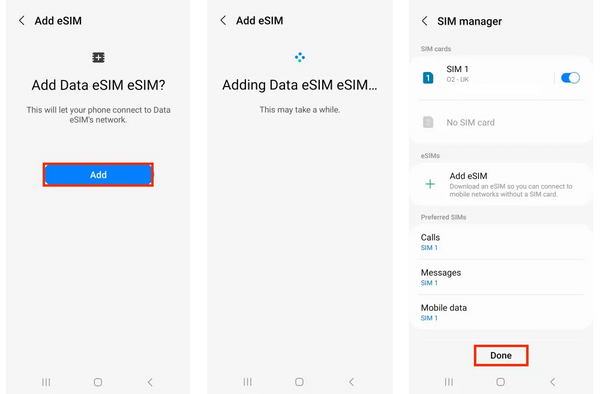
Confirm Details
Review the carrier details on screenTap "Confirm" to proceed with installationWait for activation (usually takes 10-30 seconds)
Label eSIM
Choose a label for easy identificationWe recommend "Hala eSim" or "Travel Data"Tap "Done" to save the label
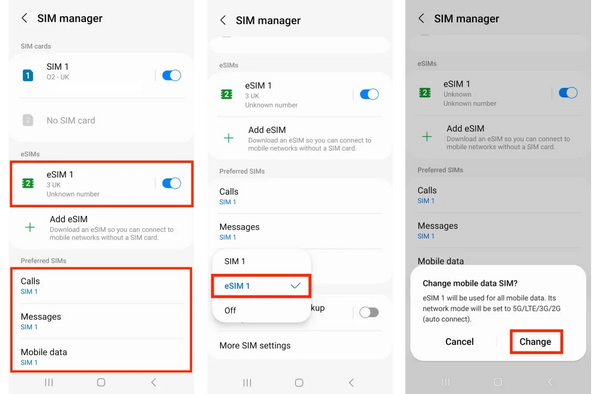
Set Default Line
Return to "SIM card manager"Set Hala eSIM as preferred for "Mobile data"Enable "Data roaming" for the eSIMDisable "Allow data switching" to avoid charges
Does my phone support eSIM?
Check if your device is compatible with our eSIM service. Our comprehensive database includes all major smartphone models and their eSIM support status.
Search your device model to check if it's eSIM compatible:

FAQ's
An eSIM (embedded SIM) is a digital SIM card embedded into your device, eliminating the need for a physical SIM card. With an eSIM, you can connect your smartphone, tablet, or other device directly to a mobile network without inserting a physical card. It also allows you to store multiple profiles, making it easy to switch between carriers or plans – perfect for travel or flexible usage.
Activating your Wadi eSIM is simple. Follow these guides based on your device:
- Open Settings.
• iPhone → Settings ▸ Cellular ▸ Add eSIM
• Android → Settings ▸ Network & Internet ▸ SIMs ▸ Add SIM - Scan the QR code from your Wadi eSim e‑mail.
(No QR? Tap “Enter details manually” and paste the code.) - Turn on Data Roaming if you’re abroad – then you’re ready to surf!
Total time: about 1 minute
Check the email you received after purchase for a link to your usage details.
No, the eSIM is not activated immediately. You have up to180 days to activate it.
Check our eSIM Compatibility Guide for a detailed list of supported devices, including:
- iPhone XS and newer
- Samsung Galaxy S21 and newer
- Google Pixel 3 and newer
How can I delete the Wadi eSIM after using up my data?
To delete your Wadi eSIM from your device, follow these steps:
For iPhone:
- Go to Settings > Cellular.
- Select the Wadi eSIM profile.
- Tap Remove Cellular Plan and confirm.
For Android:
- Open Settings > Connections > SIM Card Manager.
- Select the Wadi eSIM profile.
- Tap Remove or Delete and confirm.